This notebook demonstrates common Jupyter Book content patterns.
HTML Rendering in markdown
You can use inline HTML, standard Markdown and tables
Course Progress Snapshot
A compact status panel built with pure HTML that renders directly inside markdown.
Overall completion: 72%
Tables and Structured Data
Basic Markdown Table
| Left Align | Center Align | Right Align |
|---|---|---|
| Text | Text | Text |
| Data | Data | Data |
Showcase Table
| Feature | Category | Description |
|---|---|---|
| MyST Markdown | Reusable | Create clean, reusable documentation pages |
| Notebook execution | Reproducible | Keep outputs consistent in published docs |
| JupyterLite + Pyodide | Interactive | Run Python directly in browser without local kernel |
Tip: Standard markdown tables render in both the notebook editor and the built Jupyter Book site.
LaTeX and Math Showcase
Inline equation:
Required inline math example:
Block equation:
Math notation should render both in the notebook and in the built Jupyter Book website. Advanced equation numbering and cross-references are website-oriented features.
Python code Example
# normal code cell
print('Hello from JupyterLite-ready markdown!')
for i in range(3):
    print(f'Step {i}')
Hello from JupyterLite-ready markdown!
Step 0
Step 1
Step 2
# code cell without output
print('Hello from JupyterLite-ready markdown!')
for i in range(3):
    print(f'Step {i}')
# Visualization example
import matplotlib.pyplot as plt
x = [1, 2, 3, 4, 5]
y = [2, 3, 5, 7, 11]
plt.plot(x, y, marker='o')
plt.title('Sample Plot')
plt.xlabel('x')
plt.ylabel('y')
plt.grid(True)
plt.show()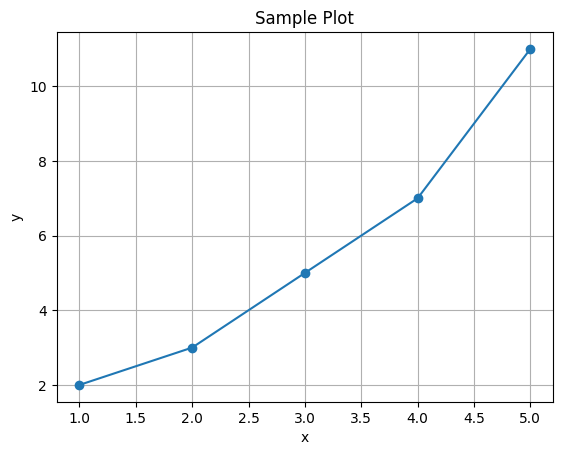
import numpy as np
import matplotlib.pyplot as plt

# Generate data
x = np.linspace(0, 10, 200)
y1 = np.sin(x)
y2 = np.cos(x)

# Create plot
plt.figure(figsize=(8,5))

plt.plot(x, y1, label="Sine Wave")
plt.plot(x, y2, label="Cosine Wave")

plt.title("Matplotlib Example (Static JupyterBook Friendly)")
plt.xlabel("X values")
plt.ylabel("Y values")

plt.legend()
plt.grid(True)

plt.show()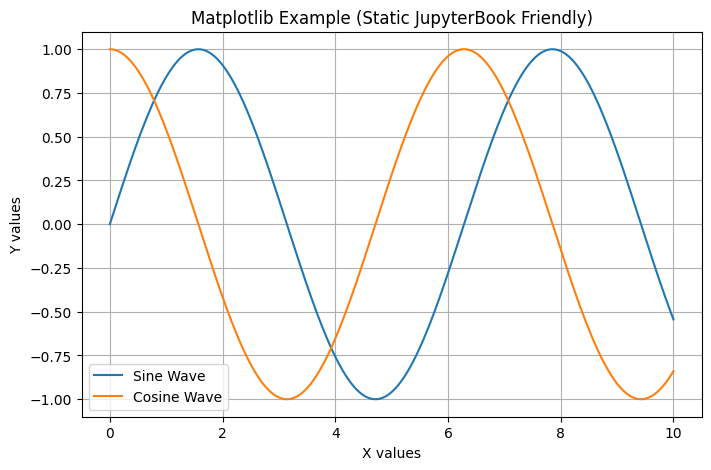
Native JupyterBook v2 (MyST) Features
JupyterBook v2 provides these capabilities natively in myst.yml — no custom Python scripts needed.
In-Browser Execution with JupyterLite (Thebe)
Setting jupyter: {lite: true} in myst.yml adds a Launch button to every page.
Clicking it opens the notebook directly in JupyterLite in the browser — no server, no installation.
# myst.yml
project:
  jupyter:
    lite: true
Any standard notebook code cell in your .ipynb files becomes runnable in-browser automatically via the launch button.
Binder Launch Buttons
To also add a Binder launch button, extend the jupyter block:
# myst.yml
project:
  jupyter:
    lite: true
    binder:
      repo: your-github-username/your-repo
ref: mainauto_notebook_creation_using_toc.py
The extensions/auto_notebook_creation_using_toc.py script scaffolds placeholder .ipynb files
from the project.toc entries in myst.yml. Run it once when setting up a new book:
python extensions/auto_notebook_creation_using_toc.pyFor auto-discovery of all existing files in a folder, MyST also supports pattern: globs in the TOC:
toc:
  - file: intro
  - title: My Chapter
    children:
      - pattern: 'notebooks/*.ipynb'